Tuesday, November 10, 2015

REMOVING INVALID SHORTCUTS


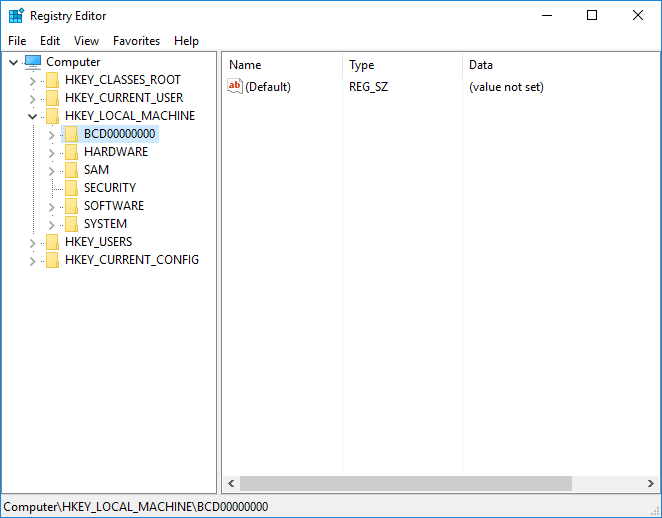
Obviously the first method to find out the invalid shortcuts placed on desktop is by clicking on them. Provided they produce an error message related to ‘Invalid shortcut’. One other method is to delete the registry key associated with the shortcut. It’s easier to use a shortcut fixing software to resolve these issues.
Alternate method using software:
You can use the Shortcut Fixer feature in Advanced System Care or use the native one in Wise cleaner.


REMOVING ICONS FROM DESKTOP

The first thing you should do is move all files from your desktop. Windows keeps your desktop in the RAM and the more stuff there is, the less RAM you have for other things. So, if you have tons of large video files plastered on your desktop, your computer will take longer to start up. And if you are generally low on RAM, a cluttered desktop may decrease overall computer performance. That's why you should move all files to ordinary folders.
Now that you've moved all files from the desktop, it's time to organize your icons. First let's get rid of the icons you don't use. Windows has a tool that will help you do it.
Here is how to use it:
Windows XP:

  1. Right-click on an empty space on your desktop and click Arrange Icons By
  2. Click on Run Desktop Cleanup Wizard
  3. Click Next
  4. Uncheck the boxes for the icons you wish to remove and click Next
  5. Click Finish to confirm.

Windows will create an Unused Desktop Icons folder where it will store the unused icons. You will then be able to either add more icons to the folder or restore the ones you need.
Windows 7:

  1. Right-click on an empty space on your desktop and click View, then click Show desktop icons
  2. This will uncheck the option and make your icons disappear. You can get them back whenever you need them by re-enabling the Show desktop icons option.

Now that you've gotten rid of the icons you never use, you can automatically arrange the remaining icons. Here is how:
Windows XP:

  1. Right-click on an empty space on your desktop, click Arrange Icons by and then click Auto Arrange. Windows will place your icons in rows.
  2. You can then click on Type and customize how Windows arranges your icons.

Windows 7:
  1. Right-click on an empty space on your desktop, click View, then click Auto Arrange. Windows will arrange your icons.
  2. Click on Sort by and select how you want Windows to sort your icons (Name, Size, Item Type, and Date).
Now that your desktop looks neat, it's time to remove hidden clutter - junk files.
Alternate method using software

 You can use the Shortcut Fixer feature in Advanced System Care.

REMOVING ADVERTISEMENTS


Advertisements can be brought by both websites and malware. It consumes your data and slows down the loading of a webpage. Here we will provide some of the basic things that you can do to avert advertisements.


  1. Do not download software from unknown source and be selective while installing toolbars coming bundled with them.
  2. Use a browser add-on like ADblock or Adblocker Plus.
  3. Download and use a freeware utility called ‘Admuncher’. You can download it from https://www.admuncher.com/
  4. Use a good anti malware product to destroy adware.

REGISTRY DEFRAGMENTATION


As you already know, the registry is altered every time software is installed or uninstalled, as well as when Windows configures settings. These constant changes cause the registry to grow in size. Registry cleanup does help a great deal, but it creates a new problem - registry fragmentation. This happens because deleting obsolete entries leaves blank bits of space within the registry. These bits of space don't get filled by new information and thus the registry becomes bloated and fragmented. As the registry loses its linear structure, it takes longer and longer for Windows to access it and your programs need longer to open.
It is better to use a simple and efficient program for cleaning the registry defragmentation as this can cripple your system.

Alternate method using software


 You can use the Registry Defrag feature in Advanced System Care.

RAM UPGRADE


RAM aka Random Access Memory, has always been considered important by enthusiasts. The purpose of RAM is similar to the purpose of your own short-term memory. It provides the computer with a space to load information useful for a current task. The more RAM you have, the more information you can store.
There's usually a limit to the amount of information you need to store. 32-bit processors have a limit of 4 GB and 64-bit can support much more. During every-day tasks, and even some demanding tasks, you don't need more than four gigabytes of RAM. Adding more is only useful in certain situations. For example, people who edit HD video, play games frequently might need more memory.

 RAM is one of the few components that most laptops allow a user to upgrade. However the specifications are to be looked a bit careful as the RAM varies with voltage and frequency. The usual frequency stays between 800MHz-1600 MHz.

RAM MANAGEMENT

RAM or Random Access Memory is an essential component that provides temporary storage space for the programs to be executed in processor. Typically, the amount of RAM installed on your device varies from 512 MB to 32 GB depending up on the performance need. For a typical user with his normal functions such as browsing internet, using office 2-4 GB RAM is enough. More RAM available for work is always desired.
There are couple of ways you can increase the amount of RAM in the system.

  1. Buy a new RAM module and install it in your system.
  2. Terminate unnecessary processes in the task manager.
  3. Close unnecessary programs.
  4. Remove unnecessary shortcuts and icons in desktop.
  5. Clear temporary cache.
  6. Use a memory management application.
  7. We recommend to use a trusted software to manage the memory.

Alternate method using software:

You can use the Smart RAM feature in Advanced System Care.

PROCESSOR UPGRADE


The CPU is the brain of the computer. It performs all the calculations and computations necessary for programs to run. These calculations take place within millionths of a second. As the programs get more complex, the time required for the calculations will also increase. Processing a photo may take a second or two but encoding an hour-long video will take an hour or more.
Buying a faster processor can significantly decrease the time these tasks take. For example, a dual-core Core i5 can batch process videos three to five times quicker than an Atom processor.
Here are a list of processors currently available in the market. Choose the one that best suits your needs:
Basic Processors (Can handle web surfing, document writing, etc...)
  • AMD Turion
  • Atom
  • Intel Celeron
  • Fusion E-Series
Entry Level Processors - (Suitable for entertainment and everyday tasks)
  • Intel Pentium Series
  • AMD A-Series
  • Intel Core i3
Performance - (Suitable for resource intensive tasks like gaming)
  • Intel Core i5
  • Intel Core i7 (dual-core)
  • Intel Core i7 (quad-core)
High-End - (The fastest currently available)
  • Intel Extreme Edition
 If you use only the web and basic productivity applications like Word, Excel, PowerPoint etc. a basic processor will suffice. Everyone else will need at least an entry-level or performance CPU.