Tuesday, November 10, 2015

SYSTEM RESTORE


System Restore is a handy Windows feature that will help you roll back your computer to a previous state. It's very useful in case of minor faults like incorrect software installations and driver conflicts. However, you must understand that System Restore does not actually back up your computer and doesn't monitor your personal files. This means that you should never rely on it alone.
Now, some people claim that disabling System Restore will boost computer performance. That's not true. System Restore only kicks in when your system is idle, which means it can't slow you down. However, System Restore can and does waste disk space. Like a lot of things in Windows, the default System Restore configuration is not ideal for most users and takes up too much space. So, if you have better plans for your gigabytes, you should configure System Restore to eat up less space.

Windows 7 users:
The Windows System Restore function got immensely improved since the days of XP. The Windows 7 version of System Restore is filed under System Protection and does a lot more thorough job at protecting you from data loss by using Shadow Copy features. Basically, this means that Windows can create snapshots of your drive and backs up your files even when they are in use. This makes the Windows 7 System Restore a lot more effective and improves your chances of successful recovery.
All the configuration tips that I recommend for XP apply to Windows 7 as well. To configure System Restore in Windows 7 do the following:
  1. Go to Start and right-click on Computer. Go to Properties
  2. Click on the System Protection link on the left-hand side
  3. Click on Configure to manage System Restore settings and the amount of disk space it uses

Now let me show you how to manually create restore points in
Windows 7:
  1. Click on Start and right-click on Computer. Go to Properties
  2. Now click on the System Protection link on the left-hand side
  3. Click on the Create button to set a new restore point
  4. Type in a description that will help you identify this restore point
  5. Click Create and you're done!
Windows XP users:
The XP version of System Restore is pretty basic and quite often pretty useless. For a start, it's slow (big surprise) and it often doesn't do what you want it to do. It's still worth having it enabled, though, just in case. To check whether System Restore is enabled, press the Windows key + the Pause/Break key to open the System Properties window and go to the System Restore tab. There you'll see the list of your disks and partitions, as well as System Restore status.
If you use a third-party restore program, you can disable the Windows one altogether.
This will free up heaps of space without putting you at risk. You can disable System Re- store by checking the relevant check-box.
If you have more than one disk or a couple of partitions on your computer, then you don't need System Restore to be monitoring all of them; it's enough to monitor the drive or partition where the OS is installed. Usually it's drive (C:). To disable System Restore on all other drives, highlight them one by one, click on Settings and check the relevant check-box.
It's a good idea to restrict the amount of space System Restore can use for its purposes.
To do this, simply go to the System Restore tab, click on Settings, and adjust the slider.
Set it to something like 5% and you'll be fine.
Sometimes you might want to create a restore point manually, especially before tweaking or installing unknown applications. It might prove handy - you never know. Creating a restore point is dead easy:
1. Click on Start - All Programs - Accessories - System tools and then click on System Restore
2. Select Create a restore point and click Next
3. Describe your restore point, so that you can easily find it in case you need it
4. Click on Create to create the restore point.

Right, now you know how to use and configure System Restore.  

SURFING PROTECTION

Surfing protection is used to block the entrance of malware while surfing the internet. This can be done in many ways. Using a firewall, you can block most kind of attacks, also using an anti-virus / anti spyware program with it will help to find the intruders in your computer.
Another type of method is to add some trusted third party software which will test the webpage you are entering and give a feedback / trust rating based on their evaluation and scanning. Some advanced software can block the website if they find malware presence even before its properly presented to the user.
It is very important to note that many people who are experiencing trouble with pop-up advertisements and tool bars suffered as they were not aware of this featured software.
Alternate method using software

You can enable the surfing protection feature in Advanced System Care by going to its settings.

SPEED UP FILE BROWSING


Do you ever use network folders and printer? My bet is you don't. But did you know that Windows looks for them by default every time you open Windows Explorer, just in case you do? This is no big deal, but it can slow down file browsing. Disabling search for network folders and printers can make using Windows Explorer and browsing files much more enjoyable.
Windows XP

  1. Open My Computer.
  2. In the menu, click on Tools, click on Folder Options and go to the View tab.
  3. Now uncheck Automatically search for network folders and printers.
  4. Click Apply and click OK.
  5. Reboot your PC.

Windows 7


  1. Go to the Control Panel and open Network and Internet.
  2. Click Network and Sharing Center.
  3. Select Change advanced sharing settings.
  4. In the Network discovery section, choose Turn off network discovery.     

RECOMMENDED SOFTWARES

Some software that can help you optimize the system has been given below. Using this software will help you to enable 90 percent optimization easier.

Advanced system care is a famous system optimization utility with a 10 million customers. It comes in both paid and free versions. The paid versions are said to achieve 300 percent performance increase. The free version is also a great community of tools that can be used to speed up and resolve computer problems. But it lacks some features such as Winfix, Smart RAM, Internet booster, Registry cleaner, Disk cleaner etc. as opposed to paid version. You can download the full software here.
Link: https://goo.gl/WsVOyI

Wise care 365


Wise Care 365 is an all-in-one PC tune-up utility. It will keep your Windows secure, clean and fast. It is a good alternate for Advanced System Care. You can download the full software here. 
Link: https://goo.gl/oHEDb4

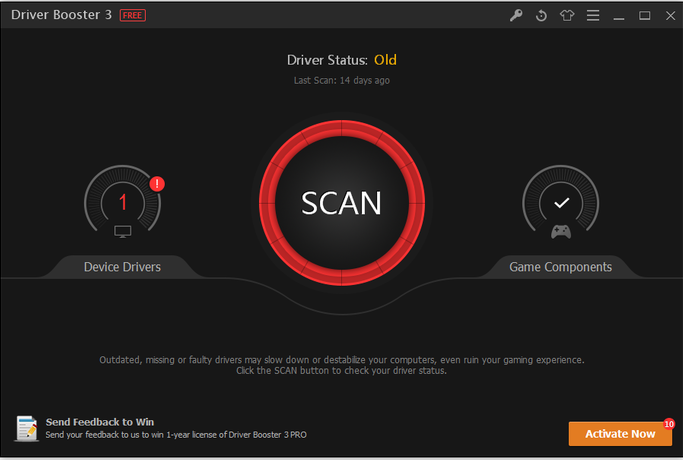
Driver booster is a great utility to update your pc’s outdated drivers. The advantage in updating the driver are more features, more secure and better performance of hardware equipment. You can download the full software here. 
Link: https://goo.gl/VUsGcN
Admuncher is a great application that you can use completely free of cost. It is widely used to block unnecessary advertisements in the browsers. Using this software combined with AdBlock will greatly enhance your browsing experience. You can download the full software here.
Link: https://goo.gl/ymjxC2
Recovery
Wondershare Recovery Manager


Wondershare Recovery Manager Recover over 550 unique file formats. Fully recover documents, emails, photos, videos, audio files and more. Recover 100MB files for free with the free trial version. Read-only, risk-free, and cost-effective Windows data recovery software. An easy-to-use wizard, no prior recovery skills needed. You can download the full software here. https://goo.gl/qbbfCc
Antivirus

Bitdefender Antivirus Plus is the acknowledged Antivirus of the Year. With a non-intrusive and extremely fast scanning technology, it offers essential silent security against e-threats.
  1. Best antivirus and antispyware defense.
  2. Extremely fast. Non-intrusive. With Bitdefender Photon™
  3. Guards your online transactions. Protects your digital identity.
  4. No popups. No configurations. Experience Bitdefender Autopilot
You can download the full software here.
Link: https://goo.gl/eknNKb

Now with 5 layers of protection. Introducing the new Norton Internet Security. Advanced Internet and antivirus protection for anywhere you go and anything you do online. Provides proactive protection, so you can do what you want online, knowing you’re protected Improved SONAR technology and live 24x7 global threat monitoring stay ahead of emerging threats Ultra-fast Internet detection layer stops most threats before they can even reach your computer.
You can download the full software here. https://goo.gl/s08RGf

5 % discount coupon code: 6EA73DF0C8 (to be used during payment, not on product seller page)

SOFTWARE UPDATION


The software updates should be done on a priority basis. Apart from giving new features most developers provide patch for their software vulnerabilities. First one to take care is our windows system itself. We recommend you to install all the critical updates on time.

 Also the software installed in your Windows PC should be updated. Some of the most important ones to be cared are Flash, Java, any security products installed and any product that visit internet and fetch information.

SHREDDING A FILE


Some files stored in your system can be recovered after deleting it. This can be security threat. So using a shredding program can help you there. It makes sure that the file is not retrievable in a usable format. You can use the File Shredder feature in Advanced System Care to do this.

REMOVING MALWARE

Malware is a broad term. It consists of virus, worms to spyware and adware sometimes. It is advisable to remove traces of malware because it can cause data damage and system crashes. Also mostly we are afraid of their system resource utilization and data theft.
The first method we are going to use is prevention. Its advised that ‘Prevention is better than cure’. In order to prevent malware please do keep these points in mind

  1. Always use a surfing protection software. Many free programs are out there. Choose an authentic one.
  2. Install an antivirus software and make sure it is always updated. Scan once a week.
  3. Use windows updates.
  4. Try not to visit adult and other harmful site.
  5. Download attachments from only trusted sender and always scan before opening it.
  6. Avoid using pen drives/CD/DVD without proper antivirus scanning.
Antiviruses:
You can use any of the antivirus listed here. These are some of the most effective antiviruses available in the market:


  • Bitdefender Antivirus
  • Norton Antivirus