Tuesday, November 10, 2015

SOFTWARE UPDATION


The software updates should be done on a priority basis. Apart from giving new features most developers provide patch for their software vulnerabilities. First one to take care is our windows system itself. We recommend you to install all the critical updates on time.

 Also the software installed in your Windows PC should be updated. Some of the most important ones to be cared are Flash, Java, any security products installed and any product that visit internet and fetch information.

SHREDDING A FILE


Some files stored in your system can be recovered after deleting it. This can be security threat. So using a shredding program can help you there. It makes sure that the file is not retrievable in a usable format. You can use the File Shredder feature in Advanced System Care to do this.

REMOVING MALWARE

Malware is a broad term. It consists of virus, worms to spyware and adware sometimes. It is advisable to remove traces of malware because it can cause data damage and system crashes. Also mostly we are afraid of their system resource utilization and data theft.
The first method we are going to use is prevention. Its advised that ‘Prevention is better than cure’. In order to prevent malware please do keep these points in mind

  1. Always use a surfing protection software. Many free programs are out there. Choose an authentic one.
  2. Install an antivirus software and make sure it is always updated. Scan once a week.
  3. Use windows updates.
  4. Try not to visit adult and other harmful site.
  5. Download attachments from only trusted sender and always scan before opening it.
  6. Avoid using pen drives/CD/DVD without proper antivirus scanning.
Antiviruses:
You can use any of the antivirus listed here. These are some of the most effective antiviruses available in the market:


  • Bitdefender Antivirus
  • Norton Antivirus

REMOVING INVALID SHORTCUTS


Obviously the first method to find out the invalid shortcuts placed on desktop is by clicking on them. Provided they produce an error message related to ‘Invalid shortcut’. One other method is to delete the registry key associated with the shortcut. It’s easier to use a shortcut fixing software to resolve these issues.
Alternate method using software:
You can use the Shortcut Fixer feature in Advanced System Care or use the native one in Wise cleaner.


REMOVING ICONS FROM DESKTOP

The first thing you should do is move all files from your desktop. Windows keeps your desktop in the RAM and the more stuff there is, the less RAM you have for other things. So, if you have tons of large video files plastered on your desktop, your computer will take longer to start up. And if you are generally low on RAM, a cluttered desktop may decrease overall computer performance. That's why you should move all files to ordinary folders.
Now that you've moved all files from the desktop, it's time to organize your icons. First let's get rid of the icons you don't use. Windows has a tool that will help you do it.
Here is how to use it:
Windows XP:

  1. Right-click on an empty space on your desktop and click Arrange Icons By
  2. Click on Run Desktop Cleanup Wizard
  3. Click Next
  4. Uncheck the boxes for the icons you wish to remove and click Next
  5. Click Finish to confirm.

Windows will create an Unused Desktop Icons folder where it will store the unused icons. You will then be able to either add more icons to the folder or restore the ones you need.
Windows 7:

  1. Right-click on an empty space on your desktop and click View, then click Show desktop icons
  2. This will uncheck the option and make your icons disappear. You can get them back whenever you need them by re-enabling the Show desktop icons option.

Now that you've gotten rid of the icons you never use, you can automatically arrange the remaining icons. Here is how:
Windows XP:

  1. Right-click on an empty space on your desktop, click Arrange Icons by and then click Auto Arrange. Windows will place your icons in rows.
  2. You can then click on Type and customize how Windows arranges your icons.

Windows 7:
  1. Right-click on an empty space on your desktop, click View, then click Auto Arrange. Windows will arrange your icons.
  2. Click on Sort by and select how you want Windows to sort your icons (Name, Size, Item Type, and Date).
Now that your desktop looks neat, it's time to remove hidden clutter - junk files.
Alternate method using software

 You can use the Shortcut Fixer feature in Advanced System Care.

REMOVING ADVERTISEMENTS


Advertisements can be brought by both websites and malware. It consumes your data and slows down the loading of a webpage. Here we will provide some of the basic things that you can do to avert advertisements.


  1. Do not download software from unknown source and be selective while installing toolbars coming bundled with them.
  2. Use a browser add-on like ADblock or Adblocker Plus.
  3. Download and use a freeware utility called ‘Admuncher’. You can download it from https://www.admuncher.com/
  4. Use a good anti malware product to destroy adware.

REGISTRY DEFRAGMENTATION


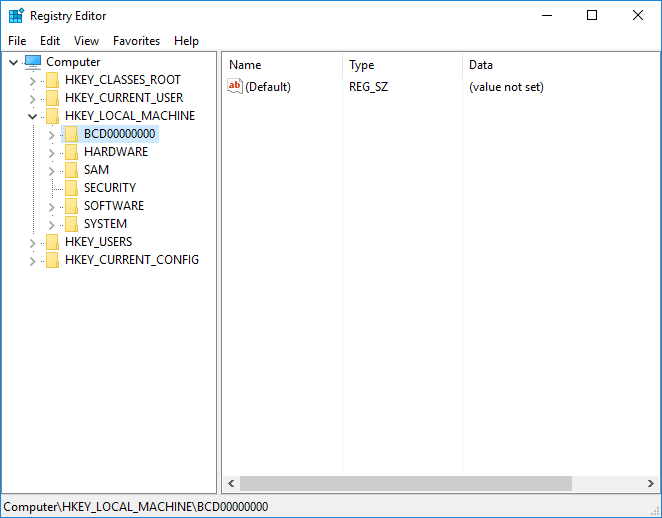
As you already know, the registry is altered every time software is installed or uninstalled, as well as when Windows configures settings. These constant changes cause the registry to grow in size. Registry cleanup does help a great deal, but it creates a new problem - registry fragmentation. This happens because deleting obsolete entries leaves blank bits of space within the registry. These bits of space don't get filled by new information and thus the registry becomes bloated and fragmented. As the registry loses its linear structure, it takes longer and longer for Windows to access it and your programs need longer to open.
It is better to use a simple and efficient program for cleaning the registry defragmentation as this can cripple your system.

Alternate method using software


 You can use the Registry Defrag feature in Advanced System Care.